Posts

Reverse Lens Macro

Image
An interesting technique I learned from a high school friend is the "reverse lens macro." Basically, it takes advantage of the fact that a lens works (i.e., focuses light) in both directions. This technique allows you to focus on a subject that is very close to the camera (within a few inches), closer than with a regularly-mounted lens. This can be used as an effective cheap macro solution. There are two main problems with this, which I will address: 1) Less light makes it to the camera sensor, and the camera has trouble reading exposure. 2) The depth of field becomes incredibly short, so it's hard to get enough of the picture in focus, and hard to get exactly what you want into focus. If you have a digital SLR camera, you can try this technique. It works best with a lens with a focal length of around 50mm. Put the camera in manual mode. This is necessary because of the difficulty in metering the light. Detach lens. As I mentioned before, it's tough to get cor...

Creating a Simple Vignette Effect

Image
I find that my pictures tend to look better with a slight vignette (when the corners are darker than the center of the picture) because it draws the attention to the center: In this post, I'll discuss three separate ways to create a vignette effect in Photoshop, with a few pros and cons of each. I'll go over the steps briefly, so please email me or leave a comment if you want more detailed directions. Method 1: Solid Color Gradient Method 2: Levels Gradient Method 3: Burning First of all, I'll start with the following picture as the base: Method 1: Solid Color Gradient The simplest way to create a vignette is to apply a solid black color over the picture and fade it out as it gets closer to the center: To create this effect: Create a new layer above your base layer and fill it with black. Create a layer mask on that layer. Choose the gradient tool, and make a gradient that consists of the following: black from 0-50%, fade black to white from 50-100% (this will make the fad...

Coloring Smoke

Image
Yesterday I posted an article ( Photographing Smoke ) about taking pictures of smoke. This article will explain how to add color to your smoke pictures. This was the picture I ended with yesterday: 1. Open your picture file in Photoshop (or a similar program). 2. Create a new layer. 3. Use the brush tool to paint colors over your smoke in a new layer (color can be applied in other ways too; try using the gradient tool to fade from one color to another). 4. Apply a Gaussian Blur to your color layer (to blend the colors together). 5. Set the color layer's blend mode to Color (you can also try Soft Light , Overlay , or any other mode for a variety of color styles). Feel free to experiment with combinations of colors, coloring techniques, and blend modes. And try inverting the final product. Here are some of mine: The above is inverted without adding color. The above is using a circular rainbow gradient. Again, you can see the rest of my Smoke set on Flickr.com.

Photographing Smoke

Image
One thing I've been doing a lot lately is photographing smoke. I think it makes some really interesting abstract shapes, especially when you get a really simple shape in the smoke. And it's not all that hard to do; it just takes a little patience. Ideally, you should have a camera with flash, manual focus, and shutter speed control. If you don't have some of those features, you can probably still take these kind of pictures, but it might be a little harder to do. Additionally, you'll need a stick of incense (or something similar that will continuously produce smoke without a flame), and it needs to be dark outside, preferably with little wind. First, set your camera to use the flash, then set the manual focus to roughly two feet. Next, light the incense and let some smoke build up. Hold the incense at the same distance as your focus (in this case, about 2 feet away). Try taking a picture of the smoke against the night sky (so you have a solid black background). I...

Alternate Angles

Image
Sometimes it's cool to mix up your photography by experimenting with different angles. Rather than taking your pictures straight on, try moving yourself to a different position until you find a different perspective on the scene. Instead of taking a frontal picture of a group of people, maybe find a balcony above that you can take the picture from. Sometimes you'll end up with some pretty good looking pictures. In the above picture of some stairs in the Vatican Museum, I wanted to capture both the height of the stairs and the geometric pattern. By taking this picture from straight above, you can see the spiral design of the stairs while getting a feel for its height. This next picture (of a church tower in Rome) was taken from a lower angle. Sometimes you need to get low to the ground to get a more extreme angle to give a better perspective (or to make an exaggeration). Often times, that's necessary just to get the whole subject in the shot (the Washington Monument co...

High Speed Photography

Image
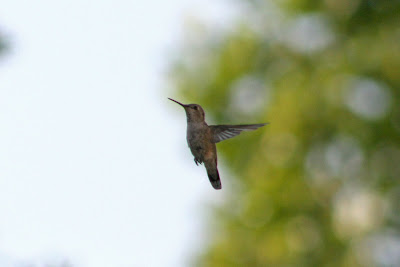
This is just a quick post to show you the opposite of my previous post. In the last post ( Working with Slow Shutter Speeds ), you learned how to leave the shutter open longer to expose the camera to more light and create photographs that show the passing of time. High speed photography can be used to capture very fast motion, while still giving a clear picture (see the example at the end of the post). This time, instead of increasing the amount of time you leave the shutter open, decrease it (something like 1/1000th of a second). Again, the camera will adjust the other settings for you, if possible. You can use this to take pictures like this: I used a 1/2500th of a second exposure time for this one, and I barely got it in time (it's near impossible to photograph a humming bird; they zip around too much).

Working with Slow Shutter Speeds

Image
Many digital cameras (from digital SLRs to simple point-and-shoot cameras) now include an option to adjust the shutter speed , or how long the shutter of the camera is open. This allows you to capture not just a moment in time, but maybe a few seconds, or more, in your pictures. The above picture is of the Champs-Élysées, a very busy street, in Paris, taken from the Arc de Triomphe. For this shot, I left the shutter of the camera open for 30 seconds. During that time, cars drove down the street, and because the camera captures any light while the shutter is open, it results in streaks of white and red lines from the cars' lights. To use this feature, you'll want to look for any kind of shutter-control mode on your camera. Canon (and probably a few others) call it "Tv" mode, for "time value." Once you've found it, try increasing the amount of time that the shutter is open (a typical amount of time for a regular picture is usually between 1/200th and ...